Features
Safe updates and undo
Sitefar is built so an update can't quietly break a site: you review changes first, broken updates are rolled back automatically, and you can undo.
Review before you update
The Updates page, and each site's Plugins and Themes tabs, show the installed version next to the new one. Use the Updates available tab to see only what's outdated. Pick items, or use Update all, then review the list and each site's backup status before anything changes.
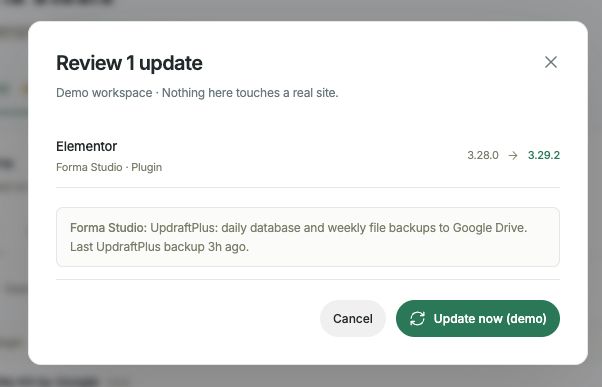 Open full-size screenshot (opens in a new tab)
Automatic rollback
Before updating, Sitefar checks that the site's homepage loads. After the update it checks again. If a site that worked before now returns an error, Sitefar puts the previous version back straight away and tells you why, for example "the homepage returns an error (HTTP 500) after the update".
This needs Sitefar Connector 1.7 or later, which keeps the previous version of each plugin or theme it updates.
Undo
Changed your mind, or noticed a problem later? Each updated plugin or theme has Undo in its row menu, which restores the version from before Sitefar's last update. Undo is available for 7 days after the update.
Backups
Sitefar shows each site's backup status before you update: which backup plugin it uses, when the last backup ran, and whether anything is scheduled.
- With UpdraftPlus, you can start a backup from Sitefar (Back up now, connector 1.9+).
- Without a backup plugin, Sitefar can install UpdraftPlus for you (connector 1.8+). Then, in UpdraftPlus's settings, choose remote storage such as Google Drive and set a schedule.
- Your host may also keep backups. Check before big updates.
Good to know
- One change runs at a time per account, in order, so results are predictable.
- If a request times out, the change may still have finished on the site. Sync first and check its state before retrying.
- Premium plugins update only if their licence is active and the update is available in WordPress itself.