Get started
Getting started
Connect your first WordPress site in about five minutes. You need a self-hosted WordPress site and an administrator account on it.
What you need
- A self-hosted WordPress site, version 6.0 or later, on PHP 7.4 or later.
- The site served over HTTPS at a public address.
- A WordPress administrator account (one that can update plugins and themes).
- A single-site WordPress install. Multisite networks aren't supported yet.
1. Create your Sitefar account
Sign up at app.sitefar.com and confirm your email address. You can explore the demo workspace first: it uses sample sites and never touches a real one.
2. Install Sitefar Connector
The connector is a small WordPress plugin that lets Sitefar see what's installed and make the changes you ask for.
- Download it: sitepilot-connector.zip, also linked in the app when you add a website.
- In WordPress, go to Plugins → Add New → Upload Plugin, choose the ZIP and click Install Now.
- Click Activate. The plugin shows up as Sitefar Connector.
From then on the connector updates itself like any other plugin. Updates are signed by Sitefar and checked before they install.
3. Create an application password
Application passwords are WordPress's built-in way to let a service connect without your real password.
- In WordPress, go to Users → Profile.
- Scroll to Application Passwords, type Sitefar as the name and click Add New Application Password.
- Copy the password it shows (it looks like
xxxx xxxx xxxx xxxx xxxx xxxx). WordPress shows it only once.
4. Add the site to Sitefar
In Sitefar, click Add website and fill in:
- Website name: whatever helps you recognise it.
- Group: My sites or Client sites, to filter later.
- Website URL: the site's final HTTPS address, including a subfolder if WordPress lives in one (for example
https://example.com/blog). Use the address the site ends up on: Sitefar doesn't follow redirects when it sends credentials. - WordPress username and the application password from step 3.
Click Connect. Sitefar checks the connection and reads the site's plugins, themes and WordPress version.
5. Review and update
- Online means the last sync with the site worked. Click Sync sites any time to read the latest state.
- Updates lists every plugin, theme and WordPress update across your sites. Review them, then update one, a selection, or everything. See Safe updates and undo.
- Activity records every change and its result.
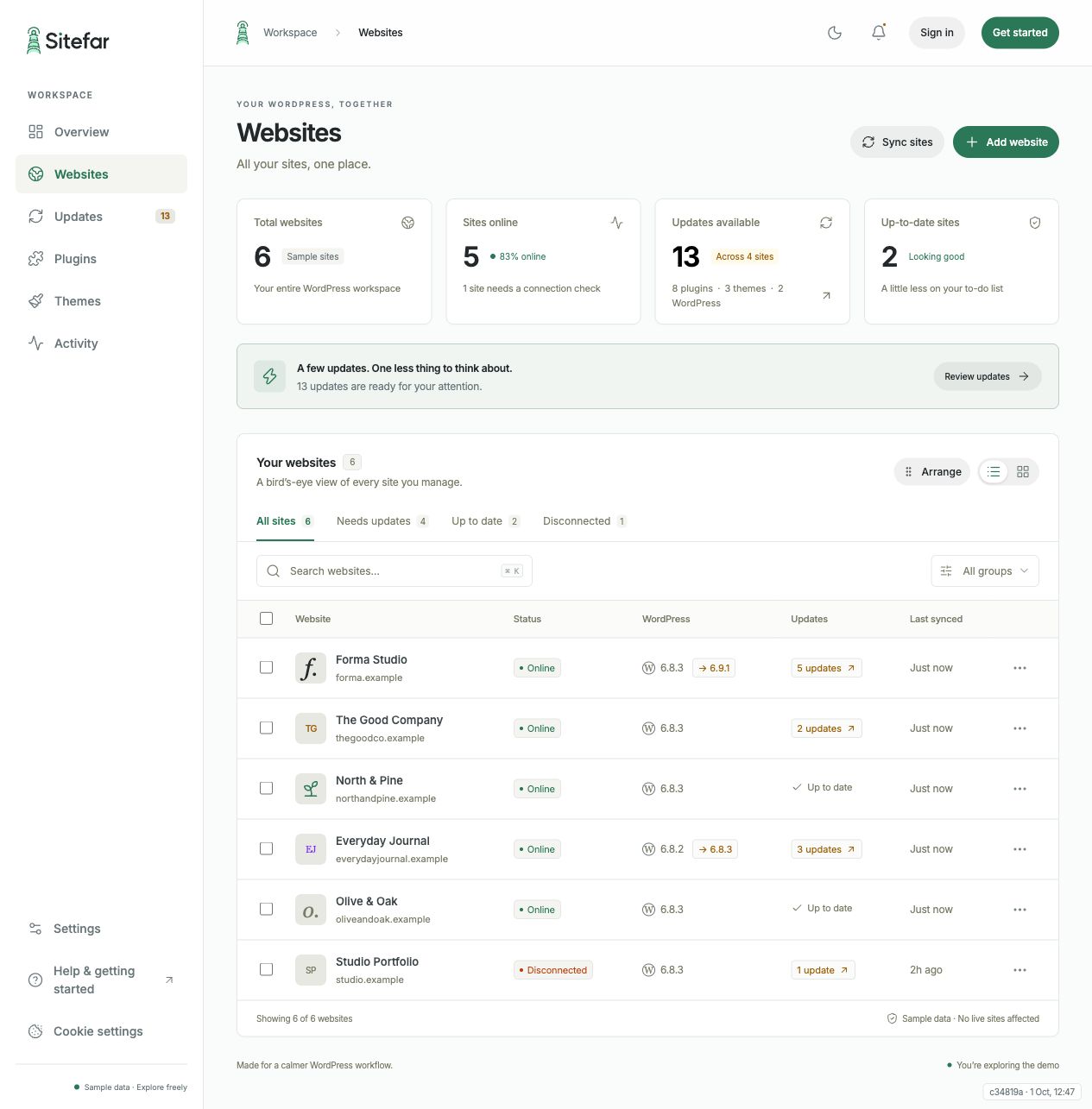 Open full-size screenshot (opens in a new tab)